Self-growth
 Apps & Digital Tools
 Business & Career
 Success
 Growth Tools
 Psychology
 Communication
 Relationships

Have you ever felt like your phone is a magnet, pulling you into another scroll session full of updates you don't actually care about?
You aren't alone. Plenty of people who use Facebook want to step back from social media or doomscroll less but hesitate because they don't want to lose years of memories, photos, or their connection to friends and family.
Finding a healthy balance with your phone is a skill that directly affects your mental wellness. If you're wondering how to take a break from Facebook — or what happens when you take a break from a friend on Facebook — you actually have a few different options. You can temporarily deactivate Facebook account access entirely, or you can simply mute one specific Facebook friend who's been clogging up your feed.
Whether you're on a desktop browser or the Facebook app on your iPhone, iPad, or Android device, this tutorial walks you through the steps to reclaim your time using the official process from Facebook's Help Center.
📘 Ready to replace endless scrolling with actual growth? Download the Headway app and start learning from the world's best nonfiction books in just 15 minutes a day.

Quick summary: How do I take a break from Facebook?
If you need a fast way to step back from the platform, here are the most effective methods:
Temporary deactivation: Use the Accounts Center to hide your profile from everyone without losing your data.
Notification diet: Mute push alerts and emails so the Facebook app stops competing for your attention.
Feed control: Use the 'Take a Break' tool to take a break from someone on Facebook without unfriending them.
Physical distance: Remove the Facebook app from your home screen to break the muscle memory of tapping it. Replace it with a microlearning app.
What does it mean to take a break from Facebook?
Taking a break doesn't always require the "nuclear option" of deleting your account entirely. Depending on what's bothering you, you might just need to adjust how you use Facebook day to day.
Here are the different levels of taking a break:
Silent break: Log out of the Facebook app and remove it from your home screen.
Notification diet: Turn off all alerts so the app stops pinging you.
Privacy shift: Adjust your privacy settings so you're less visible to others while you stay active.
Specific distance: Use the 'Take a Break' tool to see less of one Facebook friend without unfriending them.
Temporary deactivation: Hide your Facebook profile from everyone until you decide to log back in.
The right path depends on what's actually bothering you. If one person is the problem, you don't need to deactivate your whole account. But if the entire platform feels exhausting, full deactivation is the way to go. There a lot of things to do instead of dommscrolling on Facebook.
Deactivate vs. delete: Which Facebook break do you need?
Before you head into the Accounts Center, it's important to understand the difference between these two choices. Deactivation is a pause button; deletion is an exit door.
| Option | Best for | What happens |
|---|---|---|
Turn off notifications | Reducing daily distractions | Your Facebook account stays active. |
Adjust privacy settings | Controlling who sees you | Your profile remains visible according to your settings. |
Take a break from a Facebook friend | Emotional distance from a person | You see less of someone without unfriending them. |
Temporarily deactivate | Disappearing for a while | Your Facebook profile is hidden until you reactivate. |
Permanent deletion | Leaving for good | Your account is scheduled for permanent removal. |
Deactivation is temporary and reversible. Deletion is intended to be final. Once the 30-day grace period for deletion passes, your photos, past posts, and friends list are gone forever.
How to temporarily deactivate your Facebook account
Meta has consolidated most of these controls into a single hub called the Accounts Center (sometimes labeled "Meta Accounts Center" in newer app versions). The path is similar on mobile and desktop, with a few small differences in menu placement.
How to deactivate Facebook from the Facebook app
This method works for iPhone, iPad, and Android app users who want to step away from their mobile feed.
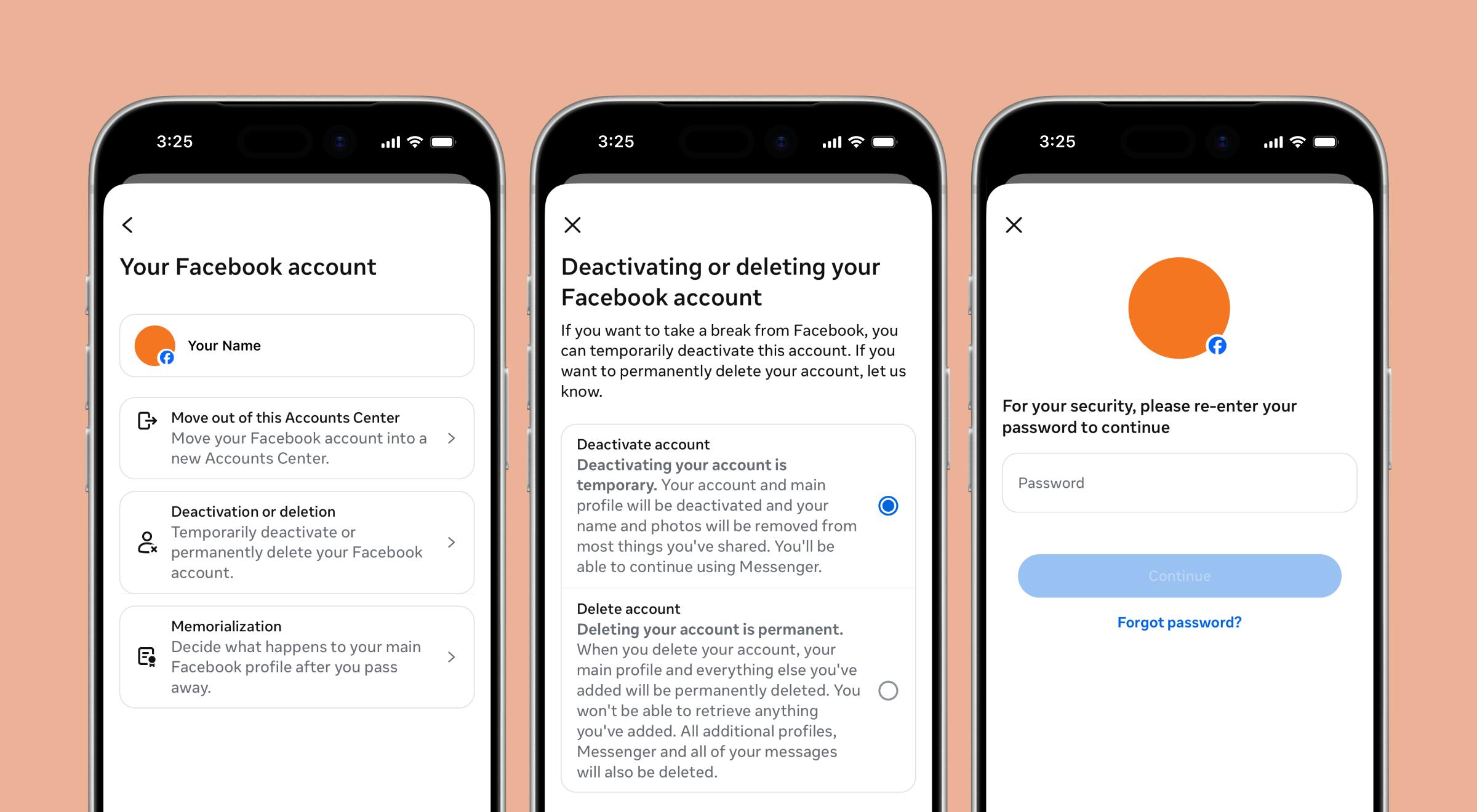
Follow these steps to delete Facebook and build better habits.
Open the Facebook app and tap your profile picture or the menu icon.
Scroll down and tap Settings & privacy, then select Settings.
Tap Accounts Center at the top.
Under Account settings, select Personal details.
Tap Account ownership and control.
Choose Deactivation or deletion.
Select the Facebook profile you want to pause.
Choose Deactivate account and follow the prompts to confirm.
You'll be asked to enter your password and pick a reason for leaving before the deactivation is final.
How to deactivate Facebook on desktop
If you prefer a browser, the flow is similar, but the layout is wider.
Open Facebook in your preferred web browser.
Click your profile picture in the top right corner.
Select Settings & privacy, then click Settings.
In the left-hand menu, click Accounts Center.
Go to Personal details and select Account ownership and control.
Click Deactivation or deletion and pick your account.
Choose Deactivate account and enter your password to finalize the process.


What happens when you deactivate your Facebook account?
Once you hit that final button, your Facebook profile is hidden from the public and your friends. It's like your account has gone into a deep sleep until you decide otherwise.
Here's what you can expect during the break:
Visibility: No one can see your profile or search for your name.
Messages: Your name may still appear in past messages you've sent.
Timeline: Your past posts and comments disappear from public view.
Profile picture: Your image may still show up in some places, like a Messenger chat.
Groups: Group admins may still see your past posts and comments along with your name.
Deactivation isn't the same as deletion. Your data isn't erased; it's archived. You can build better habits while you're away and reactivate your Facebook account whenever you feel ready to rejoin. You can also opt for an app to stop doomscrolling if you're screen time is bad and excessive.
💡 All that scrolling time has to go somewhere. Try Headway and turn it into 15-minute book summaries that actually fit your day.
Can you still use Messenger after deactivating Facebook?
This is a common concern because many people use Messenger for work or close family ties. Facebook and Messenger are linked, but they aren't the same service.
When you deactivate your Facebook account, you usually have the option to keep Messenger active. This lets you stay in touch with people without seeing the main news feed. If you choose to keep Messenger, your profile picture will still show up in chats, and people can still search for your name to send you a message.
If your goal is a full social media break, don't forget Messenger. Some people find that keeping the chat app active makes the break feel incomplete. For a total digital detox, you'll need to deactivate Messenger separately within its own settings menu.
How to reactivate your Facebook account
Reactivating is even easier than deactivating because there's no waiting period or verification process to deal with.
To get back online:
Go to the Facebook website or open the Facebook app.
Log in with your original email address or phone number and password.
Your profile, friends list, and past posts will be restored instantly.
After you return, it's a good idea to review your account settings and privacy settings. Sometimes a break gives you the perspective to realize you want to share less than you did before. Check your notifications, too, so you aren't immediately bombarded with alerts.
When you take a break from a friend on Facebook: A softer alternative to unfriending
Sometimes the problem isn't the whole platform; it's just one person. You might want emotional distance from a friend, an ex, or a former coworker without the drama of unfriending or blocking them. That's exactly what Facebook's 'Take a Break' tool is built for.
When you take a break from a friend on Facebook, you stay connected, but you both see far less of each other in the feed. According to Facebook's Help Center, the other person isn't notified, so the change happens quietly in the background.
What the 'Take a Break' tool actually does
Per Facebook's Help Center, the tool gives you three controls to choose from:
See less of their profile: Their posts and posts they're tagged in won't show up in your news feed. You won't be prompted to message or tag them in photos.
Limit what they can see: Your friend gets added to your Restricted List, so they can't see future posts you share with friends — only your public posts.
Edit past posts: You can untag yourself from posts you both appear in, edit who can see those posts, and limit shared content from the past.
It's a much softer way to take a break from a Facebook friend than blocking or unfriending. You're still technically connected, you just stop seeing each other's updates.

How to take a break from someone on Facebook on a desktop
The fastest route is Facebook's direct shortcut.
Go to facebook.com/take_a_break and log in if prompted.
Search for the friend you want to take a break from and click their profile.
Pick the options you want: see less of their profile, hide your posts from them, or edit past posts.
Click Save for each setting you change.
How to take a break from someone on Facebook in the app?
On the Facebook app for iPhone, iPad, Android, or Facebook Lite, the steps are as follows.
Open the Facebook app and search for the friend's name.
Tap their profile to open it.
Tap the Friends button under their name.
Choose Take a Break from the menu.
Adjust the three options (see less, hide your posts, edit past posts) and tap Done to save.
How to undo a break from a Facebook friend
Decided to reconnect? You can reverse the changes at any time.
Visit a friend's profile or go back to facebook.com/take_a_break.
Tap Friends > Take a Break again.
Reset each option back to the default: see their profile anywhere on Facebook, no longer limit what they can see, and keep posts as they are.
To fully restore your feed, remove them from your Restricted List in your privacy settings as well.
📚 Less noise from one person, more room for one good idea. Start your first book summary on Headway.
How to make your Facebook account more private before taking a break
If you aren't ready to disappear completely, you can take a softer break by tightening your privacy settings. This cuts down the noise and helps you feel more in control of your personal details.
Limit past posts: Use the tool in your Facebook settings to change the audience of all your old posts to "Friends only" in one click.
Friend list visibility: Hide your friends list so strangers can't browse your connections.
Profile search: Turn off the setting that lets search engines like Google link to your Facebook profile.
Accounts Center: Check whether your Instagram account is connected so you can manage your presence across both apps.
How to take a break from Facebook the healthy way?
A break works best when you have a plan for the time you've reclaimed. Instead of swapping Facebook for another scroll on TikTok, pick a habit that actually leaves you feeling better.
Stop the scrolling addiction by by deciding how long your break will last — a weekend, a month, or indefinitely. Tell your closest friends how to reach you by text or call so you don't feel isolated. Queue up a podcast or audiobook playlist for your commute so the urge to open the Facebook app doesn't catch you off guard. Most importantly, find a small, easy learning habit to fill the gap.
A 15-minute book summary in the Headway app can fill the same small pockets of time you used to spend scrolling. While social media often leaves you feeling drained, learning something new from a book like 'Digital Minimalism' by Cal Newport can leave you feeling empowered.
Ready to reclaim your time? Make your move with Headway!
If you're stepping away from Facebook for a full digital detox — or just trying out what happens when you take a break from a friend on Facebook — that reclaimed time deserves a better destination than another feed. The Headway app helps you grow without the stress of an endless feed.
Instead of scrolling through political arguments or photos of someone's lunch, you can listen to the key ideas from the world's best nonfiction books. Whether you want to improve your career, your relationships, or your mindset, Headway gives you the tools to do it in bite-sized sessions that fit into your day.
Grow on the go: Listen to audio summaries while you commute or work out.
Stay consistent: Use daily goals and streaks to build a learning habit that sticks.
Personalized for you: Get a custom growth plan based on your unique goals.
📘 Join the millions of people who've chosen self-growth over scrolling. Try Headway today and see how much you can learn by turning off the noise.
FAQs on how to take a break from Facebook
How can I take a break from Facebook without deleting my account?
The most effective way is to temporarily deactivate your Facebook account through the Accounts Center. This hides your profile and data until you choose to log back in, so you can step away without losing your photos or friends list. Reactivating only takes one login, and everything you left behind comes right back.
Can I take a break from Facebook permanently?
If you want to step away forever, that's actually account deletion, not a break. Deactivation has no time limit and stays in place until you log back in, so you can use it for as long as you want — months or even years. Deletion, on the other hand, is permanent after the 30-day grace period.
Can you take a break from Facebook and still use Messenger?
Yes, in most cases. During the deactivation process, Facebook will ask if you want to keep using Messenger. If you agree, you can stay active on the chat app to talk to friends while your main Facebook profile stays hidden from the public. To go fully offline, deactivate Messenger separately.
How do you take a break from someone on Facebook without unfriending them?
Use Facebook's 'Take a Break' tool. On desktop, go to facebook.com/take_a_break and search for the person. On the Facebook app, visit a friend's profile, tap Friends, and select Take a Break. From there, you can choose to see less of their profile, hide your own posts from them, and edit past posts.
Will deactivating Facebook delete my profile picture or past posts?
No, it won't. When you deactivate your Facebook account, Meta archives your data instead of erasing it. Your profile picture and past posts will be hidden from other people while the account is paused, but they'll all reappear instantly once you reactivate by logging back in. To remove anything permanently, you'd need to choose deletion instead.
Is the process different on iPhone, iPad, Android, or Facebook Lite?
The general path is consistent across all mobile devices. You'll go to Settings, then Accounts Center, then Personal details to find the deactivation options. The exact menu placement might vary slightly by version, but the core steps are the same on iOS, Android, and Facebook Lite.